1️⃣How to get started...
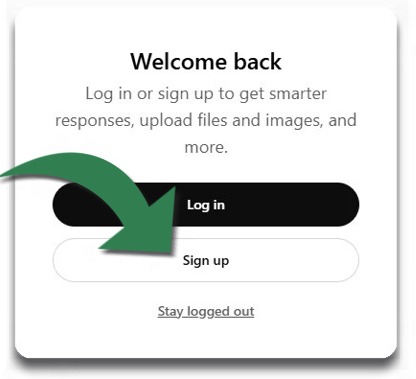
The first time you visit "Ima Computer," You will get a "Welcome back" screen. Don't let that throw you!
Just tap the "Sign up" option and create your personal log in using your email.
NOTE: You will be asked create a password that is at least 12 letters and/or numbers.
2️⃣Keeping it Safe:
Ima's builders are very concerned for your safety and privacy.
So, after you sign up, you will see this page.
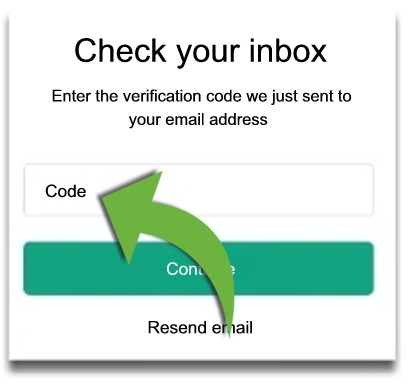
You will leave that page open and go to your email where you will see an email from OpenAI with a "code" made up of numbers and/or letters.
Write the code down (or copy it) and go back to the tab (as shown above) to type the code in the box. (Tap here if need help moving between open windows/tabs on your computer.)
3️⃣And, you're in!
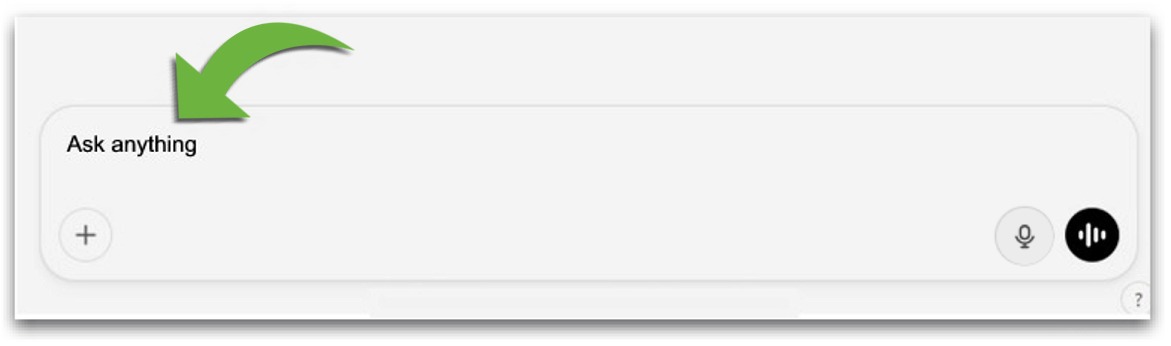
To type to Ima, tap on "Ask anything," as shown below:
NOTE: Tap the little picture of a microphone again to stop.
The words will appear on your screen.
Tap the arrow next to the words to send.
*️⃣Don't want to type?
Tap here to learn out to use voice mode
 Tap to return to menu