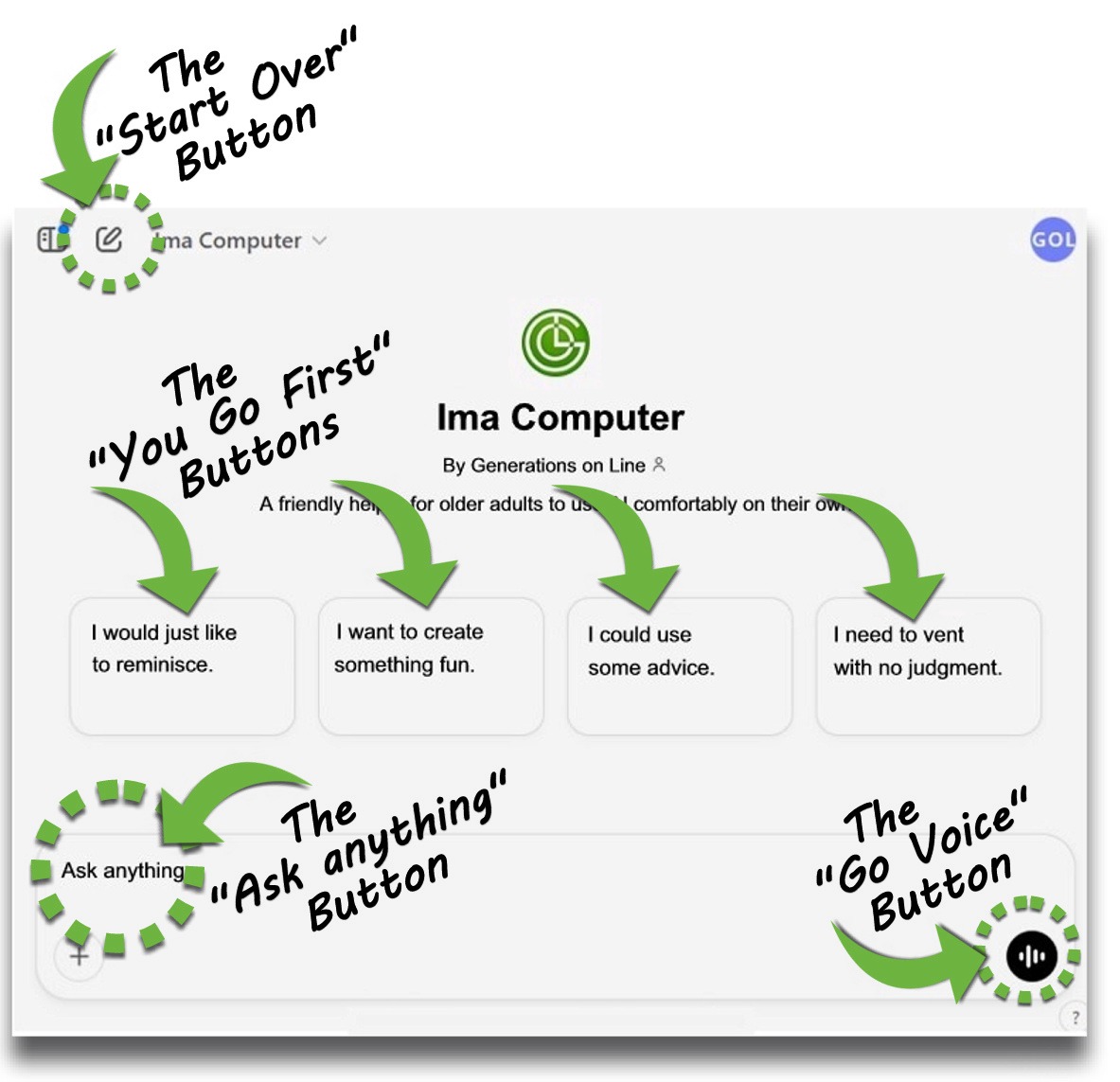
Here's what the Ima Computer "Start Page" looks like!
The screenshot below shows you what you will see and highlights the important stuff.
The Important Stuff:

START OVER/REFRESH: If Ima starts "acting funny," or you just want to start over, you can tap this button to start a FRESH "chat" (conversation) with Ima.

ASK ANYTHING: If you would like to type your own conversation starter or just ask a question, you would tap on "Ask Anything" and type in your message and then tap the little arrow.

GO VOICE: If you would rather just talk, tap on this button and wait until the circle turns blue. Then you can speak your question out loud.To stop the conversation, tap this button again.

PROMPT BUTTONS: These four little boxes serve as "conversation starters."
If you are not sure where to start or what to ask Ima,
You can tap on a box that interests you.
The Other Stuff:

PROFILE: This little "spot" in the upper right hand corner or the screen is your profile button. If you ever decide to make changes or "upgrade" your account, this is where you would do that. That is pretty much the only time you would tap this button.

ADD FILE: If you would like to add a picture or another kind of file, you would tap this button and then tap on "Upload from computer." If your tablet has a camera, you also tap this button to use your camera while you chat with Ima.

MENU: This is a button that will open a "side bar" with options to use other A.I. ChatGPTs that are similar to Ima but are not specifically for older adults.

GPT MODEL ID: The little arrow next to "Ima Computer" is a kind of "back up" button. If you tap on that, you will have options to log out or start a new conversation. If your other buttons stop working, tap the little arrow.

VERY IMPORTANT: When you are done using Ima (or any AI app), always make sure to close the app when you are done. And to stop the voice feature, Then you can speak your question out loud., tap this button again.
 |